IQ Central and Connected Intelligence
IQ Central is a personal workspace, set up around your roles, that shows what needs your attention now and what is coming up soon. It is generally available from release 2026.11.10.5. Connected Intelligence brings AI advisors into the blocks you already work in, working from your own Sensei IQ data; it is pre-release. This page takes the topics in Sensei's two walkthrough videos one at a time, so you can read about each one and jump to the moment in the video that shows it.
IQ Central
The IQ Central walkthrough (7:53).
A workspace set up around your roles
IQ Central looks across your projects, programs and portfolios, your resources, and the information that supports them: risks, issues, decisions, deliverables and change requests. From all of that, it shows you the items that need your attention now, and the ones coming up soon.
It does this with blocks. Each block answers one question for one role, such as which of my projects are in trouble? or which requests are waiting on me?, and you arrange the blocks on a canvas of your own. Your arrangement is saved and follows you between Microsoft Teams and the Sensei IQ app, where IQ Central runs.
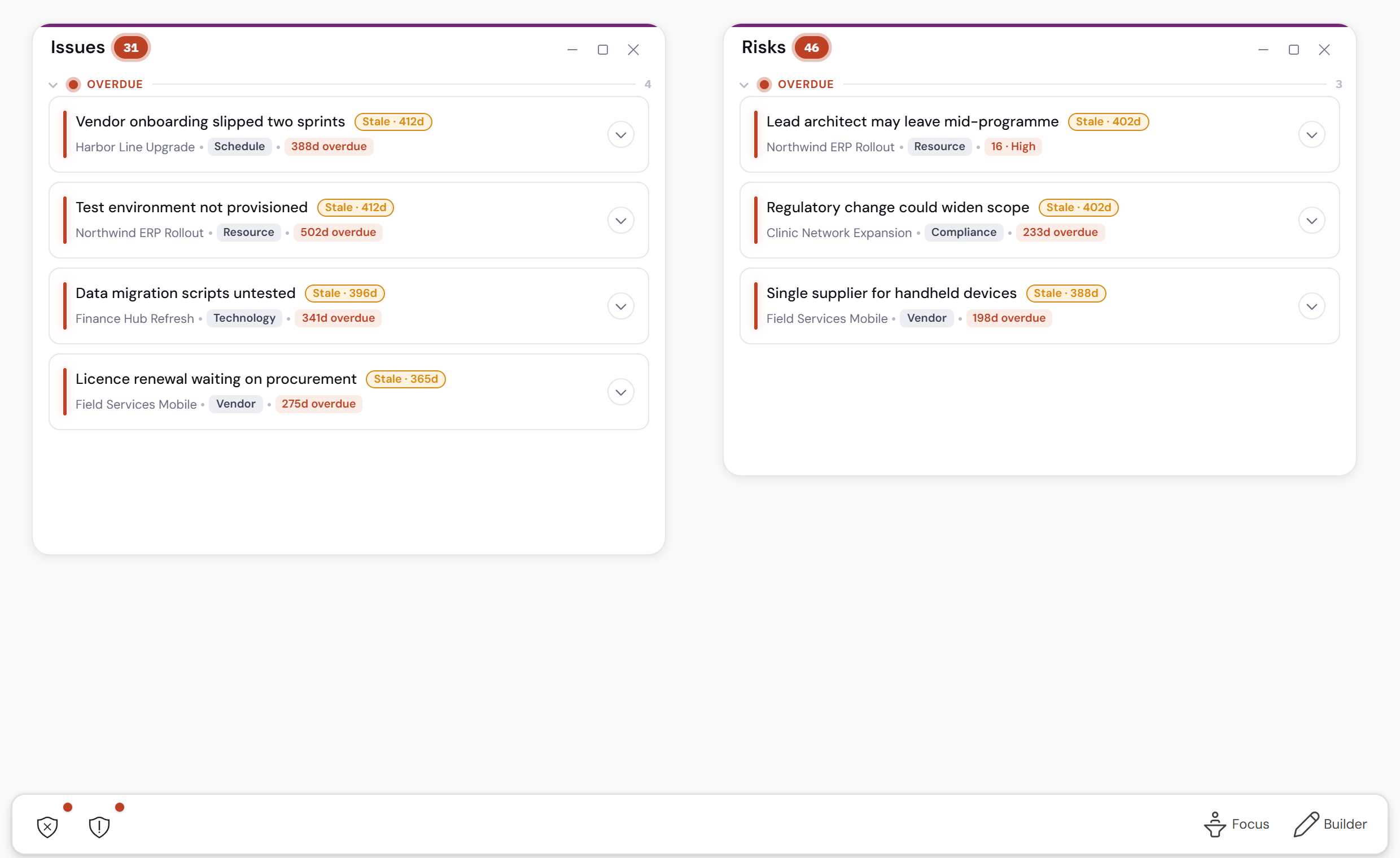
Two blocks on the canvas, with the taskbar below. Sample data.
Every block works the same way, so once you know one you know them all:
- Window controls to minimize, maximize or close a block, and to show it as its signal face.
- Show or hide what is finished, so the list keeps to what is still open.
- Sort and search within the block.
- Filters that narrow the list to your involvement, such as the projects you manage or sponsor.
Watch the opening of the walkthrough · About IQ Central
The Projects block
The Projects block lists the projects you manage or sponsor, with the ones that need the most attention at the top. Group it by overall status so the projects in trouble come first, and filter it by status and stage.
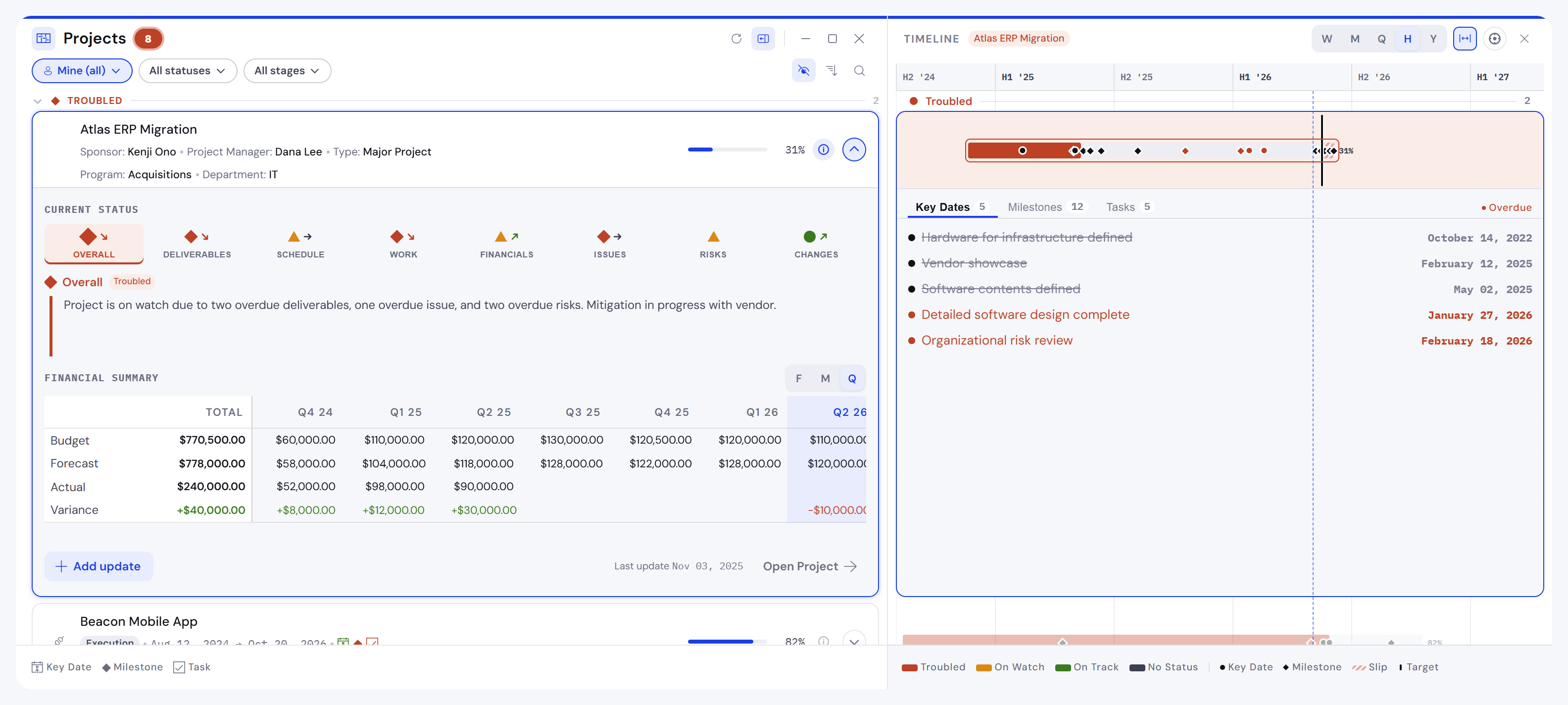
A project expanded, with the timeline lens open on its key dates. Sample data.
- The timeline lens. Open the lens to see the selected project on a timeline, with its key dates, milestones and tasks, each on its own tab.
- Status by area. Expand a project to see its status in each area (overall, deliverables, schedule, work, financials, issues, risks and changes) and the commentary behind it.
- The financial summary. The expanded project also shows its budget, forecast, actual and variance, by fiscal period, month or quarter.
- Act from the row. Add a status update without leaving the block, or open the project.
Watch this part of the walkthrough (0:59)
Signal faces
Shrink a block far enough and it stops being a list. It becomes its signal face: a small picture of what the block holds, drawn in that block's own shape, that points out the exceptions. A row of signal faces tells you at a glance whether anything needs you; you restore the one that says yes.
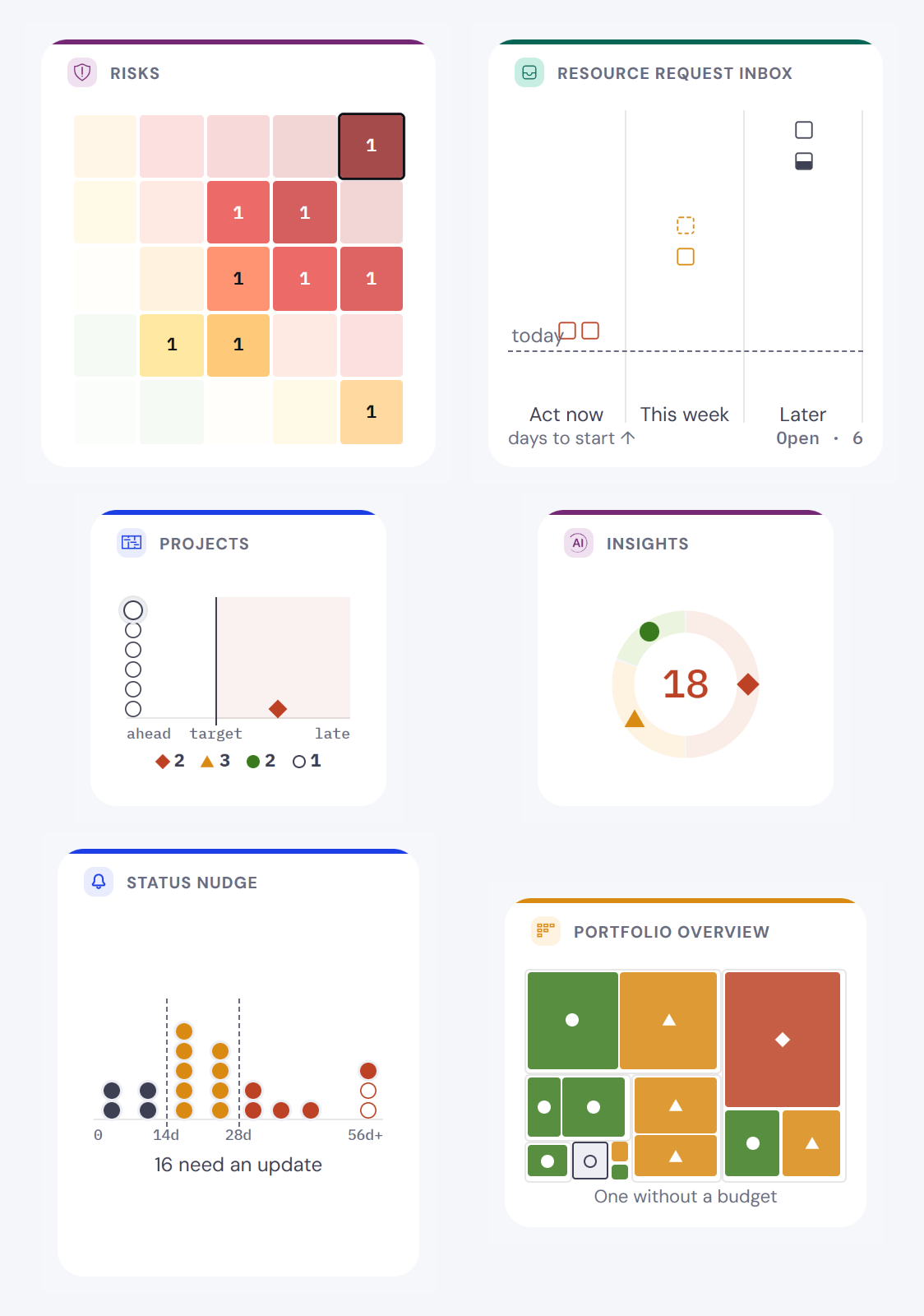
Each block draws its signal in its own shape. Sample data. The Insights block is part of Connected Intelligence, which is pre-release.
- Show a block as its signal face from its header, by double-clicking the header, or by dragging its edge inward.
- Restore it from the signal face, or by double-clicking it. The block comes back at the size you last had it.
- Point at any part of a face to read what it shows in a sentence.
Watch this part of the walkthrough (4:21)
Focus Mode
Focus Mode shows one block at a time on a full stage, with the rest of your canvas waiting either side. It is for the stretch of work where you want a single block and nothing else.
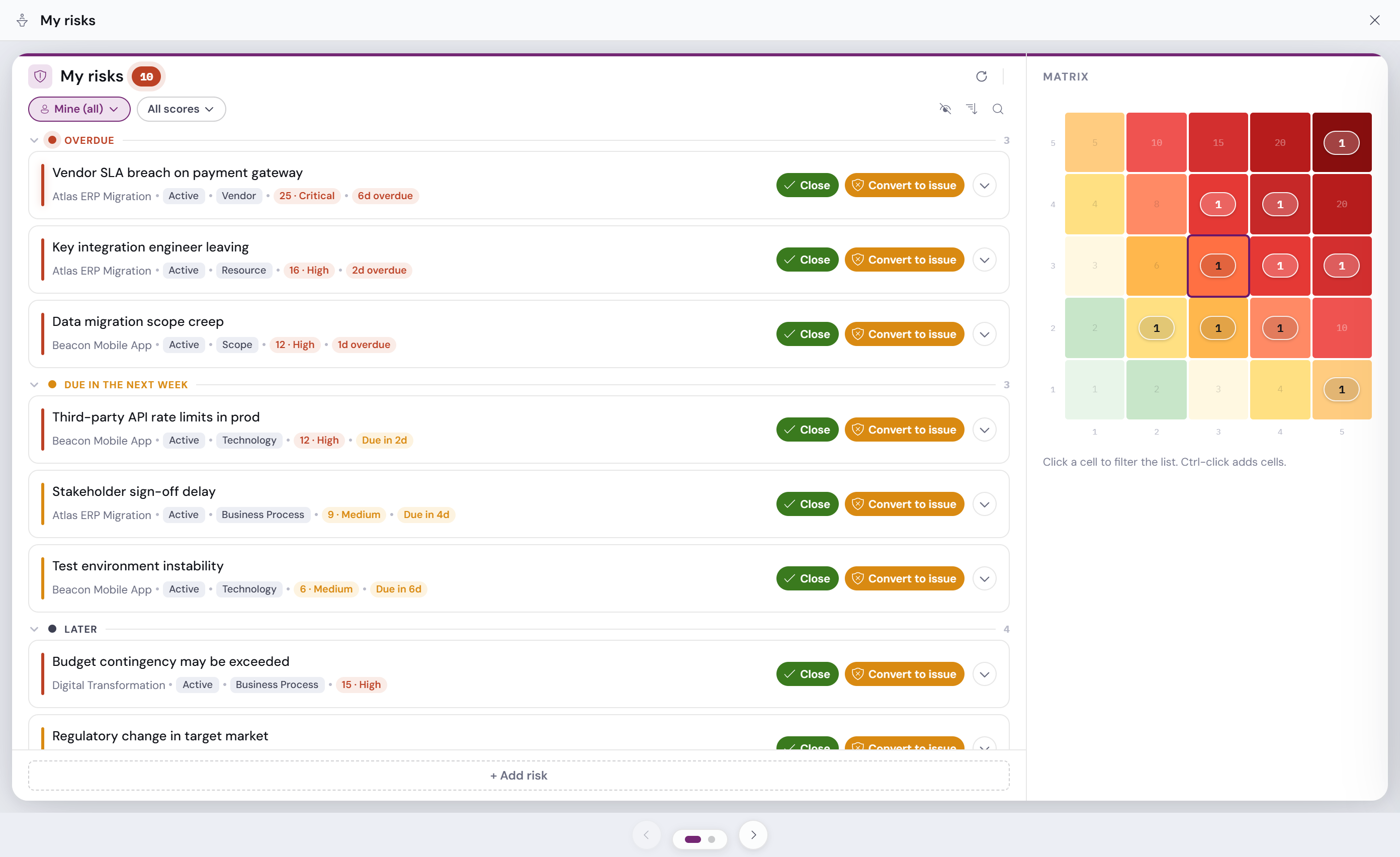
Focus Mode on the Risks block, with its matrix lens already open. Sample data.
- Move between blocks with the arrow keys, by swiping, or with the chevrons on the navigation band at the bottom, and press Escape to leave.
- A block's lens opens by itself, because there is room for it.
- Changes you make stay. Sorting and filters you change in Focus Mode are saved, the same as on the canvas.
The walkthrough steps through Projects, Portfolio Overview, Resource Request Inbox, Risks, Issues, Decisions, Deliverables, Deliverable Acceptance, Calendar, Change Requests, Change Request Approvals and Status Update Nudge.
Watch this part of the walkthrough (5:02)
Connected Intelligence
Connected Intelligence, including the Insights block, is pre-release functionality and features. It is not yet generally available, and details are subject to change before release. Talk to your Sensei contact about availability for your environment.
The Connected Intelligence walkthrough (6:20).
Connected Intelligence is the optional Sensei IQ AI service. Its advisors work inside the blocks you already use, from your own Sensei IQ data, and they never act on their own: an advisor suggests, and you decide whether to keep what it offers, change it or discard it. Connected Intelligence is off by default, and your administrator chooses whether to turn it on.
Insights, your daily brief
Insights answers the question you start the day with: what should I look at first? It reads across the work you are accountable for and writes a short brief, then sorts what it found into what is critical, what to watch and what is steady.
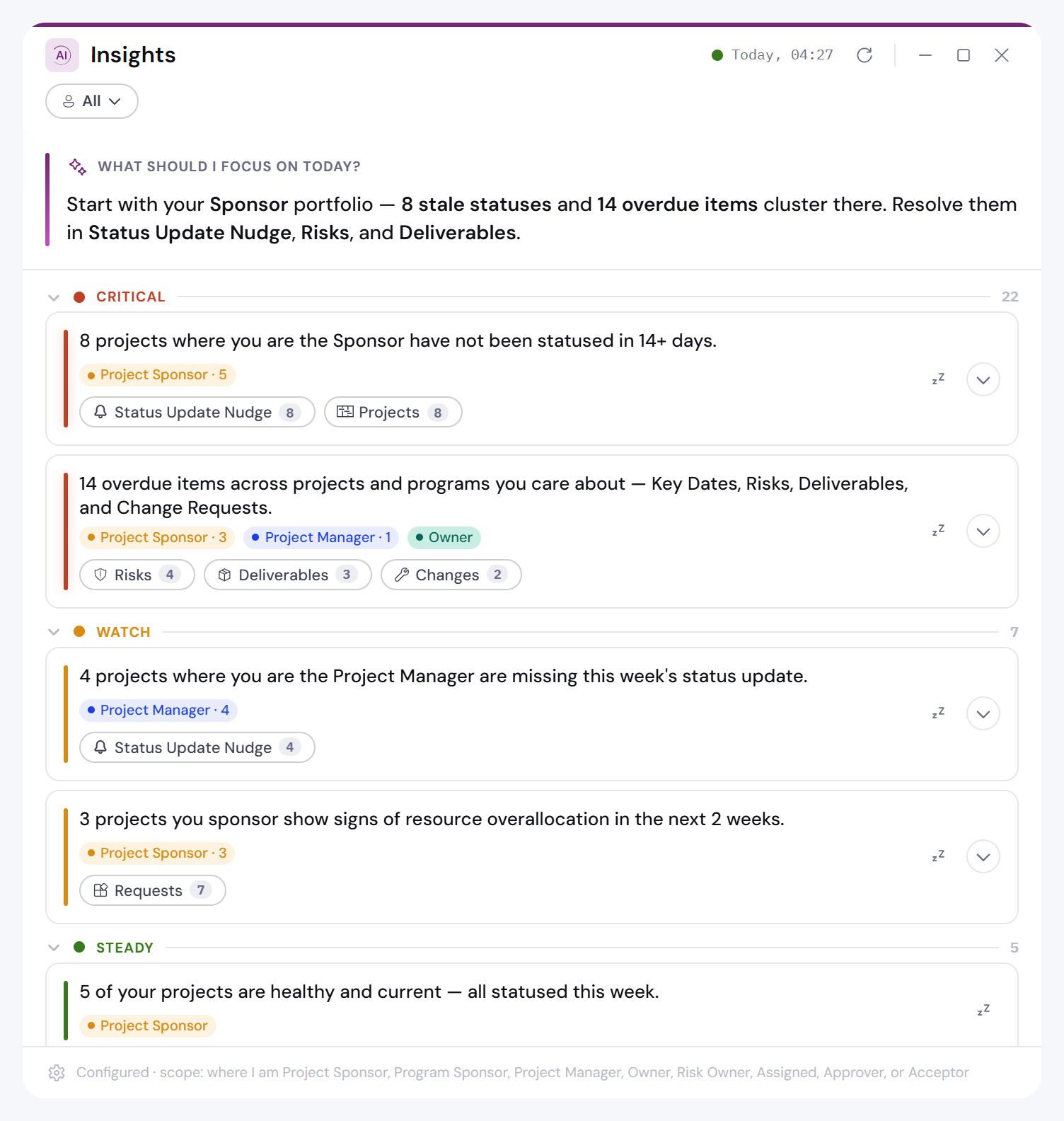
The brief and its cards, each with a link to the block that can act on it. Sample data. Interface shown is pre-release and subject to change.
- Built from your work. The brief covers the records where you are named and the records on the projects, programs and portfolios you manage, so two people get different briefs from the same environment.
- Every line leads somewhere. Each card links to the block that can act on it, so the brief points you to the work instead of leaving you to find it.
- Narrow it to a role with the filter at the top, such as only what you sponsor.
Watch this part of the walkthrough (0:40)
The Status Update Advisor
When you write a status update, Sensei IQ sets the ratings for each section from your organization's thresholds. The Status Update Advisor then drafts the commentary for each section, including what has changed since the last update, because it reads the previous update as well as the project.
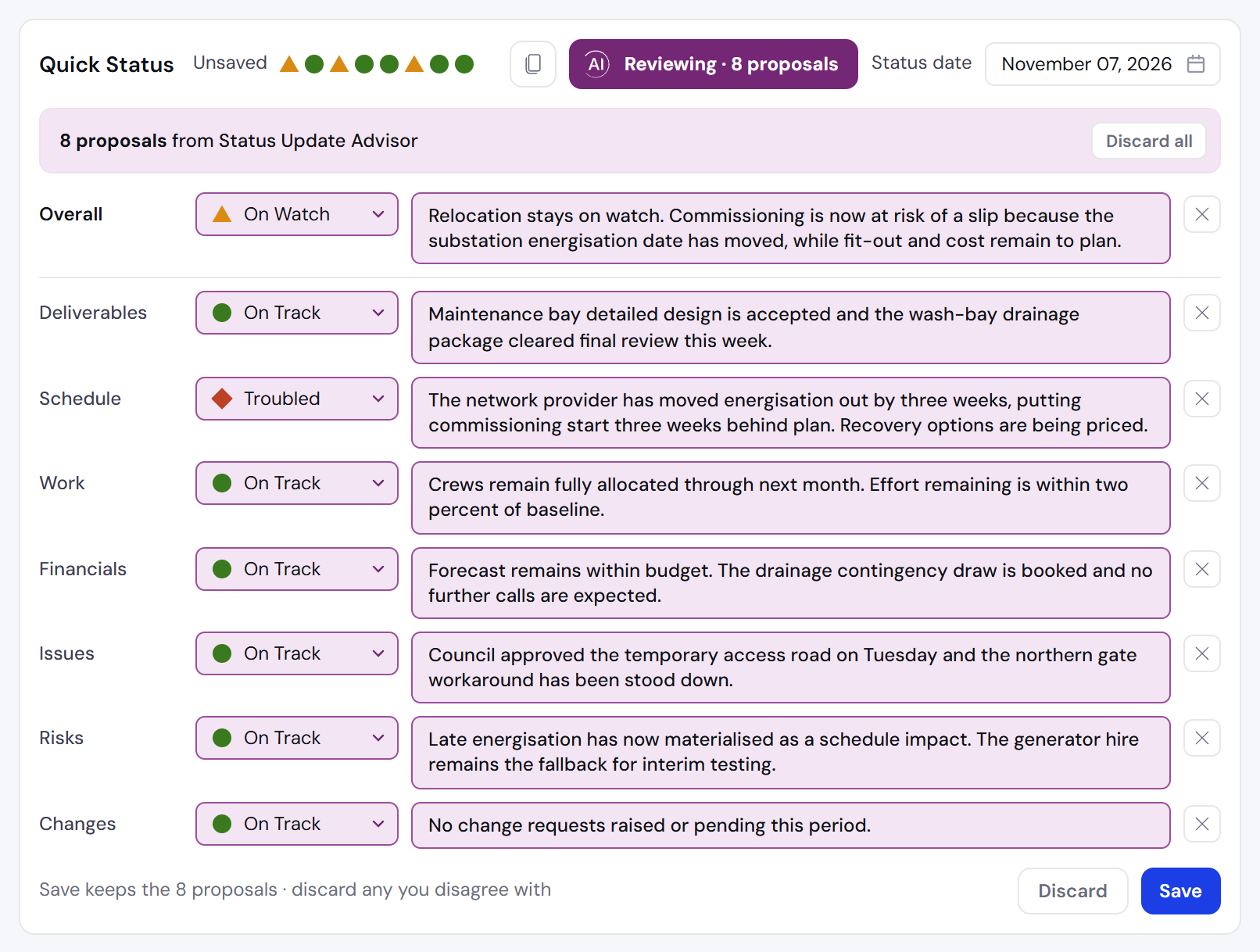
Eight proposals, one per section, each ready to keep, edit or discard. Sample data. Interface shown is pre-release and subject to change.
- Every draft is a proposal. Edit it, discard it, or discard them all; Save keeps what is left.
- Nothing is written until you save, and what you save is recorded as your own change.
Watch this part of the walkthrough (2:23)
The Risk Advisor
The Risk Advisor drafts a risk's description, mitigation plan, contingency plan and trigger description, from the risk itself and the project, program or portfolio it is filed under.
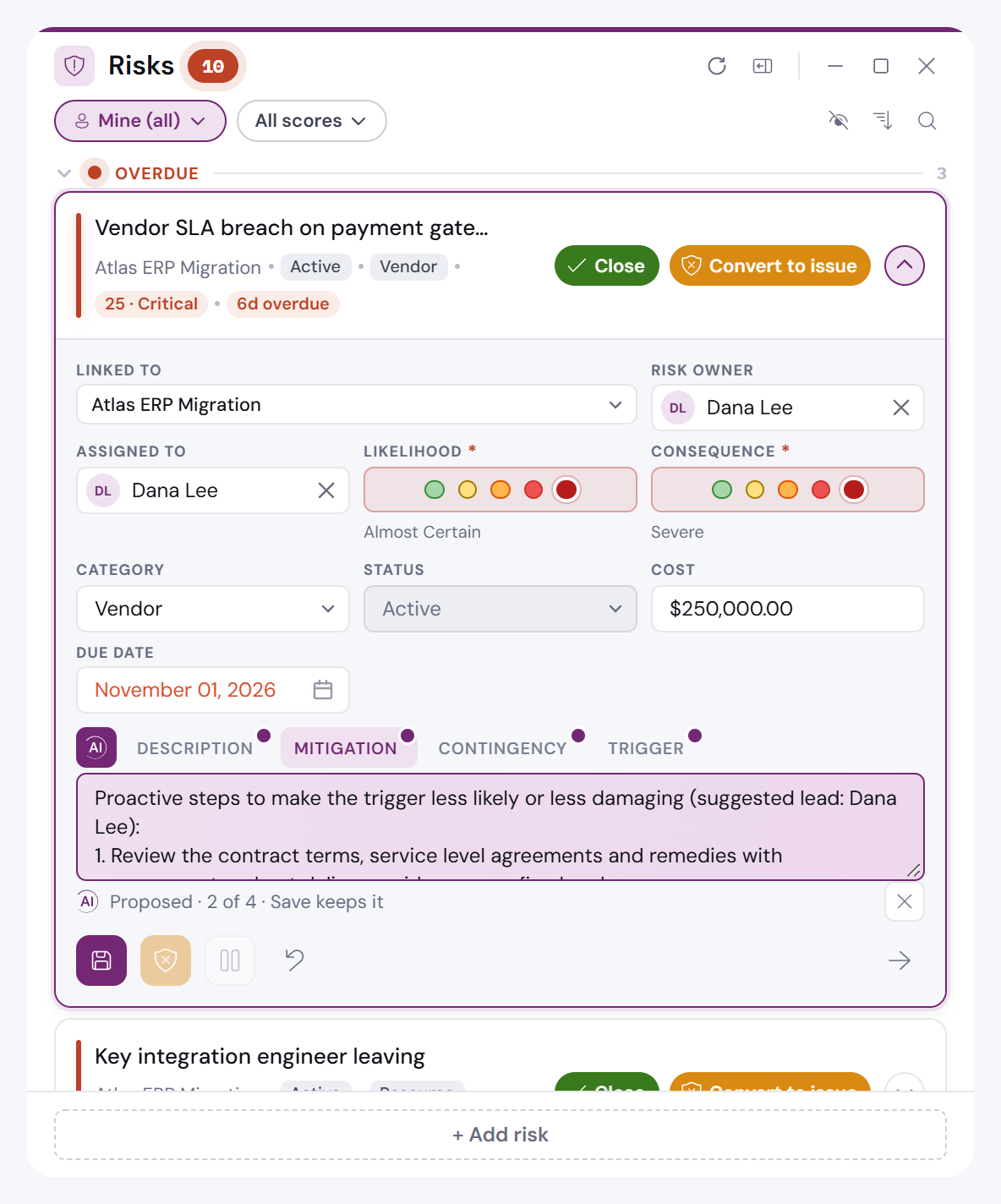
A drafted mitigation plan, marked as a proposal in its own field. Sample data. Interface shown is pre-release and subject to change.
- Each draft lands in its own field, marked as a proposal, so you can read them one tab at a time.
- Save keeps them. Change or discard any of them first.
Watch this part of the walkthrough (3:36)
What administrators control
You decide what the advisors read, and how they write.
- The fields each advisor reads. The Status Update and Risk advisors read only the fields on a list held in your configuration, which your administrators can review and narrow. Nothing outside that list is sent.
- The instructions that shape how it writes. Instructions set the tone, the terms your organization uses and what a good draft looks like, so drafts read the way your people write.
- Instructions change the wording, never the access. What an advisor can read is set by its field list and by your users' own permissions, not by its instructions.
Watch this part of the walkthrough (4:28) · Can we control or see exactly what's sent?
Two ways to connect an AI model
The advisors work with Sensei's AI service, which Sensei hosts and manages. Connecting them to your organization's own existing contract with an AI provider is a later option, and the advisors will work the same way with either.
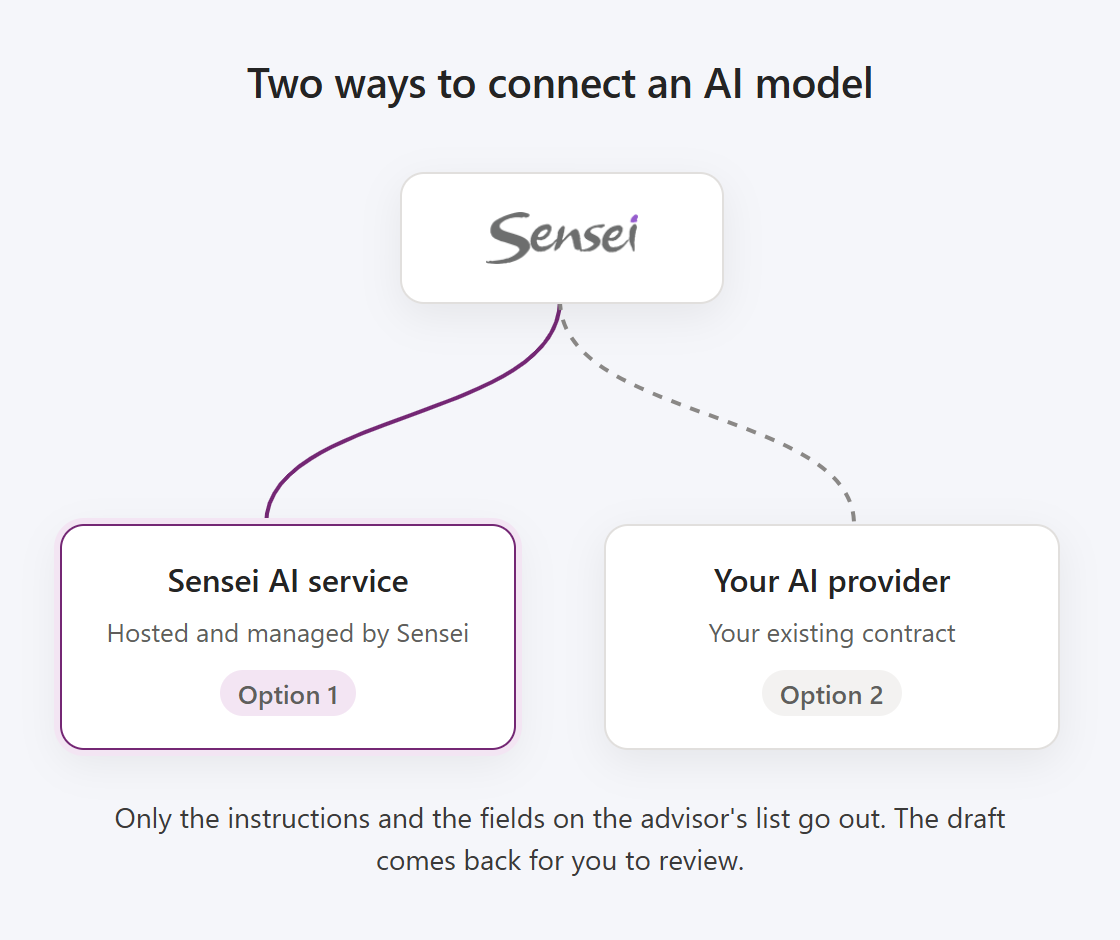
Either way, only the instructions and the listed fields go out. Sensei's AI service comes first; connecting your own AI provider is a later option.
Whichever you use, only the instructions and the fields on each advisor's list go out, and the draft comes back to Sensei IQ for you to review. The Connected Intelligence FAQ covers how your data is handled and when each option is available.
Watch this part of the walkthrough (5:14)
Related pages
- Release 2026.11.10.5: the release that makes IQ Central generally available
- IQ Central: the workspace model, the blocks in the first release, and what your organization controls
- Connected Intelligence Advisors FAQ: what the advisors do with your data, and how they are delivered
- Roadmap Highlights: what has shipped, what is rolling out and what comes next
- What's New in Sensei IQ: these topics one at a time, as What's New in IQ Central shows them where an administrator has turned it on